
14) Create / Send Notification (Now or Scheduled)
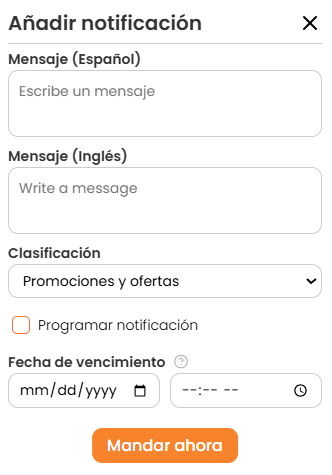
Screens: “Add notification” modal with:
- Message (Spanish)
- Message (English)
- Category
- Schedule notification checkbox
- Send now button
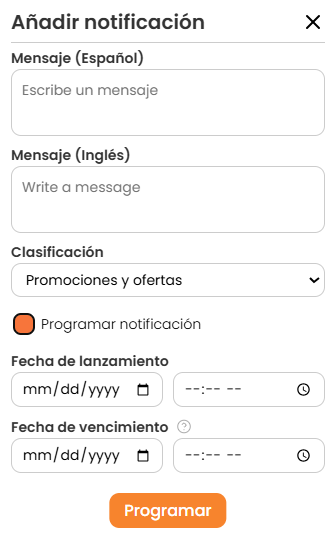
- Scheduled variant: Launch date and Expiration date, Schedule button
- Confirmations: “The notification has been sent…” / “has been scheduled…”
Objective
Send campaigns to users (promotions, updates, events, changes).
Send now
- Click Add notification.
- Enter the Message (Spanish) and Message (English).
- Select the Category.
- Click Send now.
- Verify the send confirmation.
Schedule
- Click Add notification.
- Enter messages in ES/EN.
- Select the Category.
- Enable Schedule notification.
- Set:
- Launch date
- Expiration date
- Click Schedule.
- Verify the scheduling confirmation.