
Add Location
The Add location section lets you register and manage the information for each of your branches or points of sale within the app. This information will be visible to your customers and is key for orders, hours, and contact details.
How to add a new location
-
Click the Add location button.
-
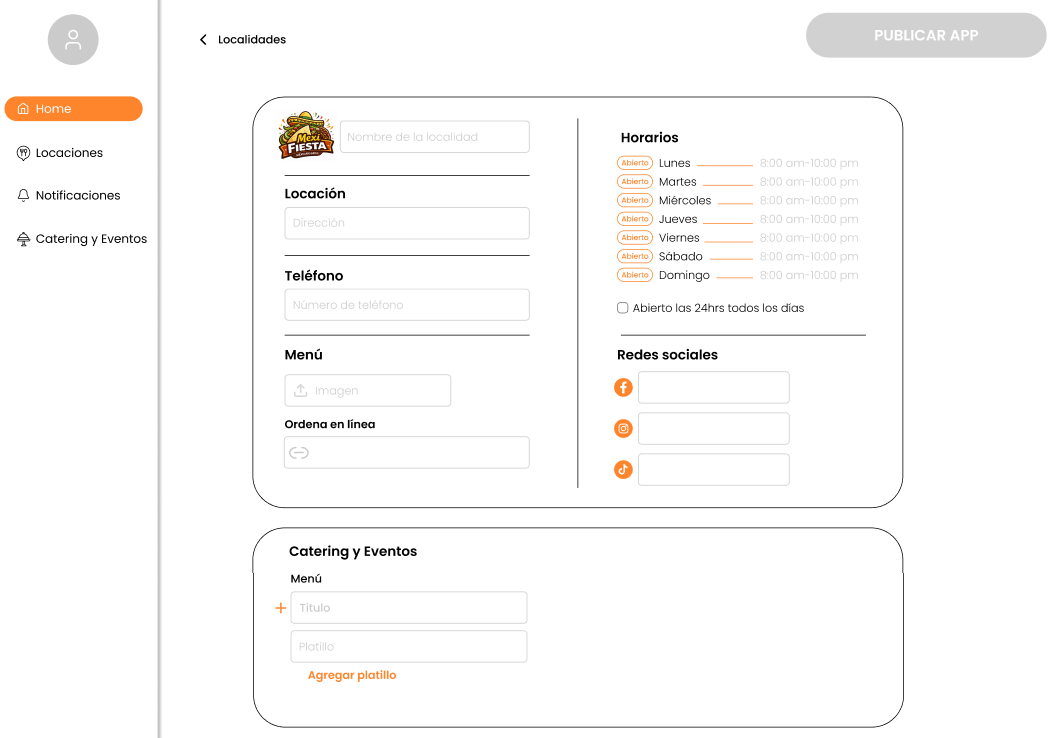
The location setup form will open.
-
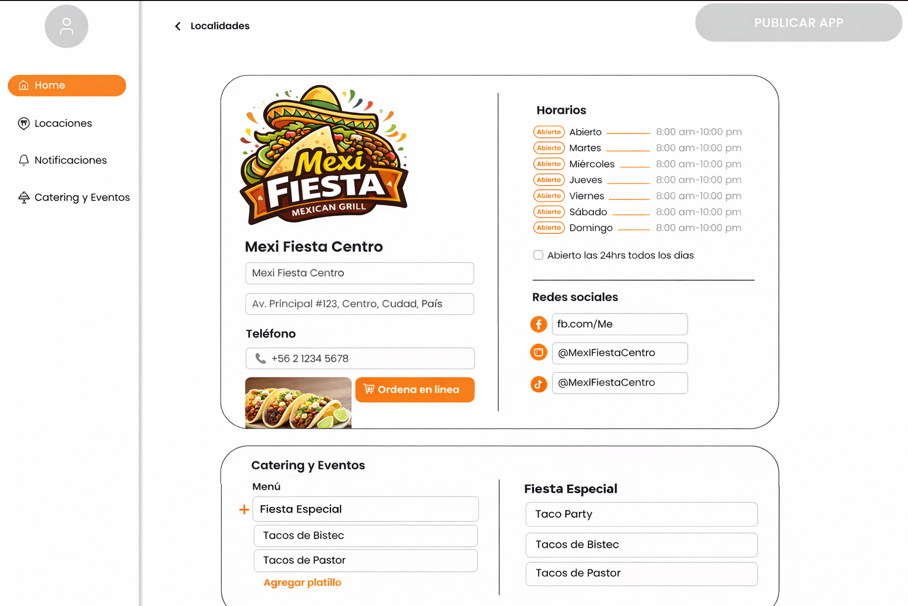
Complete the required fields.
-
Save your changes and publish the app when you finish.

General location information
Location name
Enter the name you will use to identify this branch.
Example: Mexi Fiesta 16
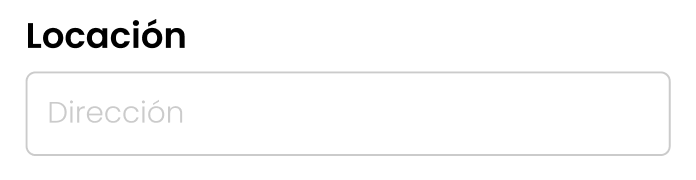
Address / Location
Enter the full address for the location.
Example:
1300 Fulton Ave B, Sacramento, CA 95825, United States
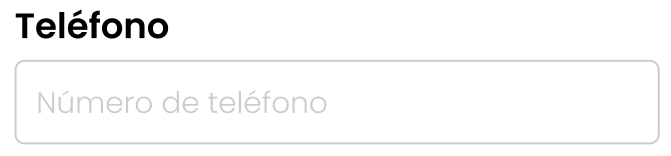
Phone number
Add a customer contact phone number.
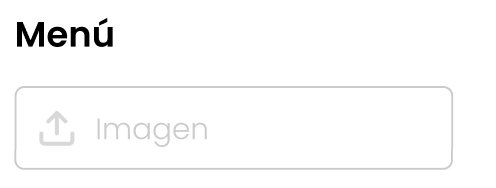
Menu
Upload menu
Upload a menu image or file so customers can view it.
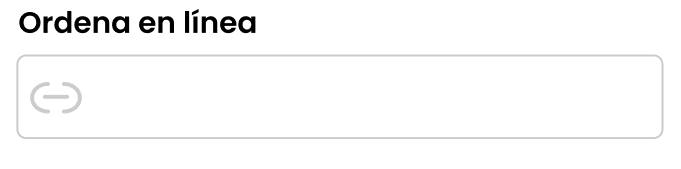
Order online
Enter the link where customers can place orders online (Clover, a digital menu, or another platform).
Hours of operation
Set opening and closing hours for each day of the week:
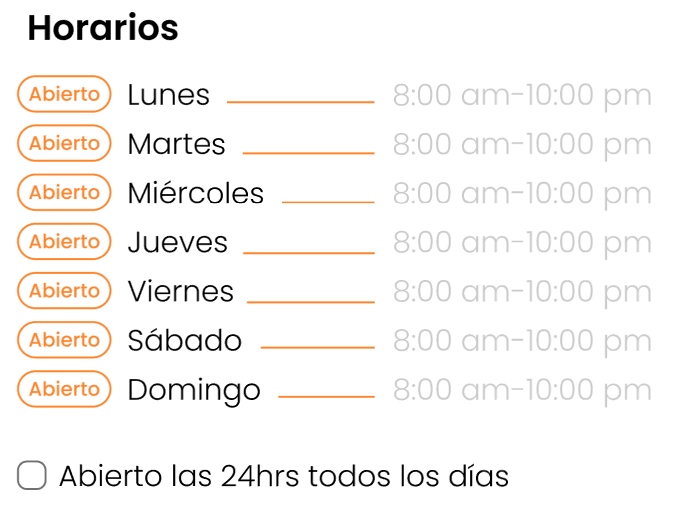
- Monday to Sunday: Open or Closed
- Define operating hours per day
- Available option: Open 24 hours every day
Social media
Add the social media profiles for this location:
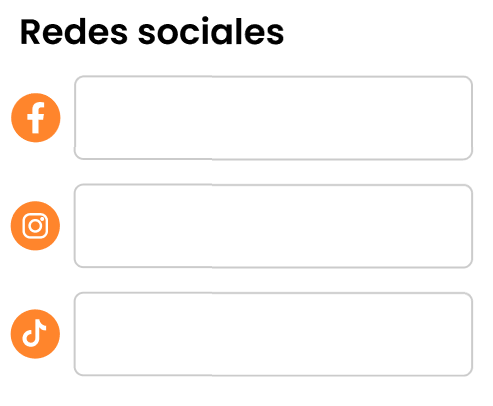
- TikTok
This helps customers find and follow you easily.
Catering & Events
Configure a special menu for catering and event services.
Add a catering menu
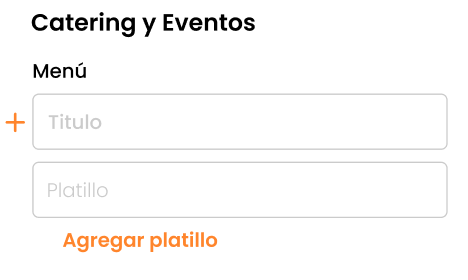
- Enter the menu title.
- Add the dishes.
- Use Add dish to include more options.
Example:
- Title: Tacos
- Dishes: Asada, Bisteck
Publish App
Once all information is complete, click Publish App so the changes are reflected in the mobile application.