
Employee Profile (History, Editing, Records, and Receipt)
Navigation
- Employee profile
- Profile structure
- Edit employee data
- Filter history by date range
- History table (how to read it)
- Add a record (manual)
- Generate receipt
Employee profile
Within Employees, when you click View more, you access the employee profile.
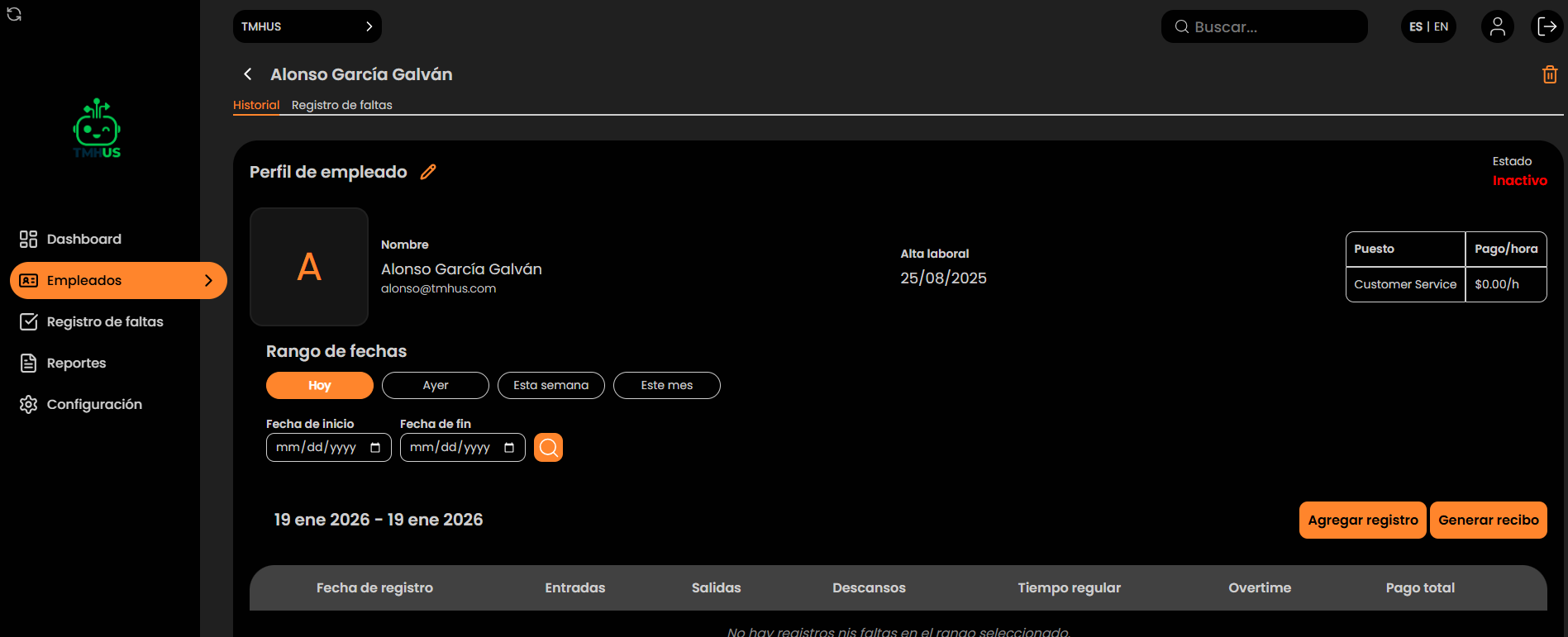
Profile structure
Typical elements:
-
Employee name (top section)
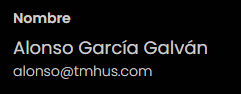
-
Tabs: History / Absence records

-
Date range (filters)
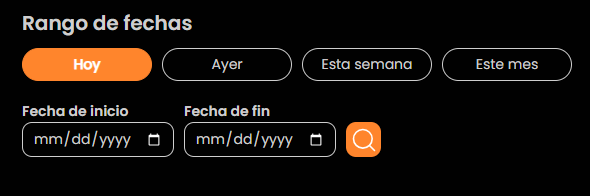
-
Buttons: Add record and Generate receipt
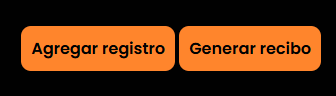
-
Lower table with records

Edit employee data (name, email, position, and pay/hour)
-
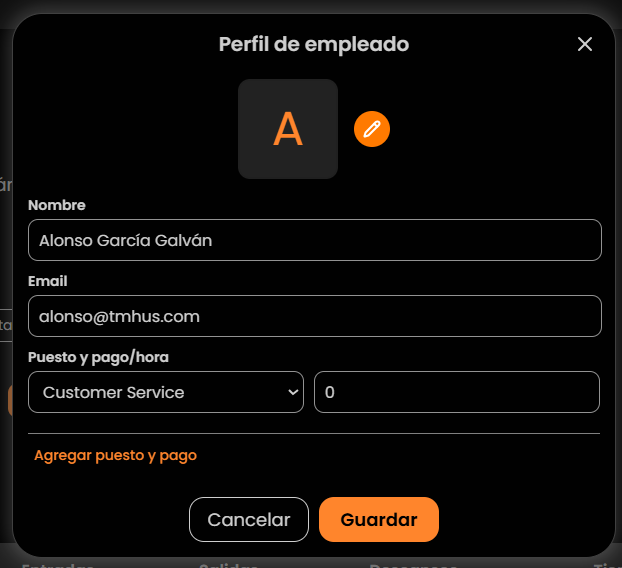
Click the pencil (edit) icon.

-
The “Employee Profile” window opens.
-
Available fields (depending on permissions):
-
Name

-
Email

-
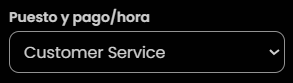
Position (dropdown)
-
Pay/hour

-
Add position and pay option (if applicable)
-
-
Save with Save or exit with Cancel.
Filter history by date range
In History, you can use:
-
Quick buttons: Today, Yesterday, This week, This month

-
Or set Start date and End date
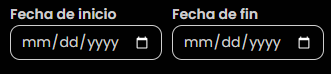
Then apply using the magnifying glass.

History table (how to read it)
Typical columns:
-
Record date
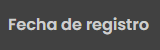
-
Clock Ins

-
Clock Outs

-
Breaks
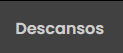
-
Regular time
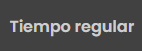
-
Overtime
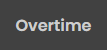
-
Total pay
Meaning
- Clock Ins/Outs: recorded times.
- Breaks: pauses (if applicable).
- Regular/Overtime: totals for the day or selected period.
- Total pay: informational calculation based on pay/hour and time totals.
Add a record (manual)
-
Click Add record.
-
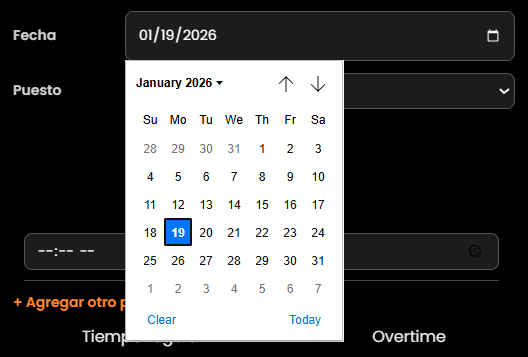
Complete the modal:
-
Date
-
Position

-
Time pairs (clock in/clock out)

-
+ Add another pair (if applicable)
-
-
Review the summary: Regular time and Overtime.

-
Save with Save or cancel with Cancel.
Generate receipt
-
Click Generate receipt.
-
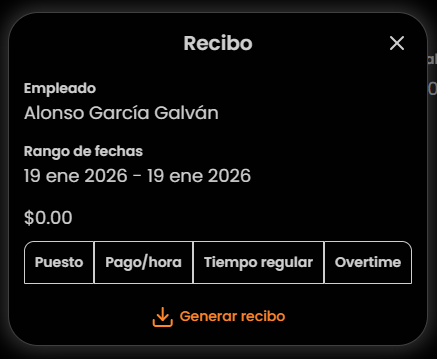
In the “Receipt” modal, verify:
-
Employee
-
Date range
-
Total ($)

-
Tabs: Position, Pay/hour, Regular time, Overtime

-
-
Click Generate receipt to download.