Dashboard (Attendance Summary by Day / Period)
Navigation
- Dashboard
- Main indicators
- Filter by dates
- Results table (employee detail)
- How to read it quickly
- Workday and Closeout
Dashboard
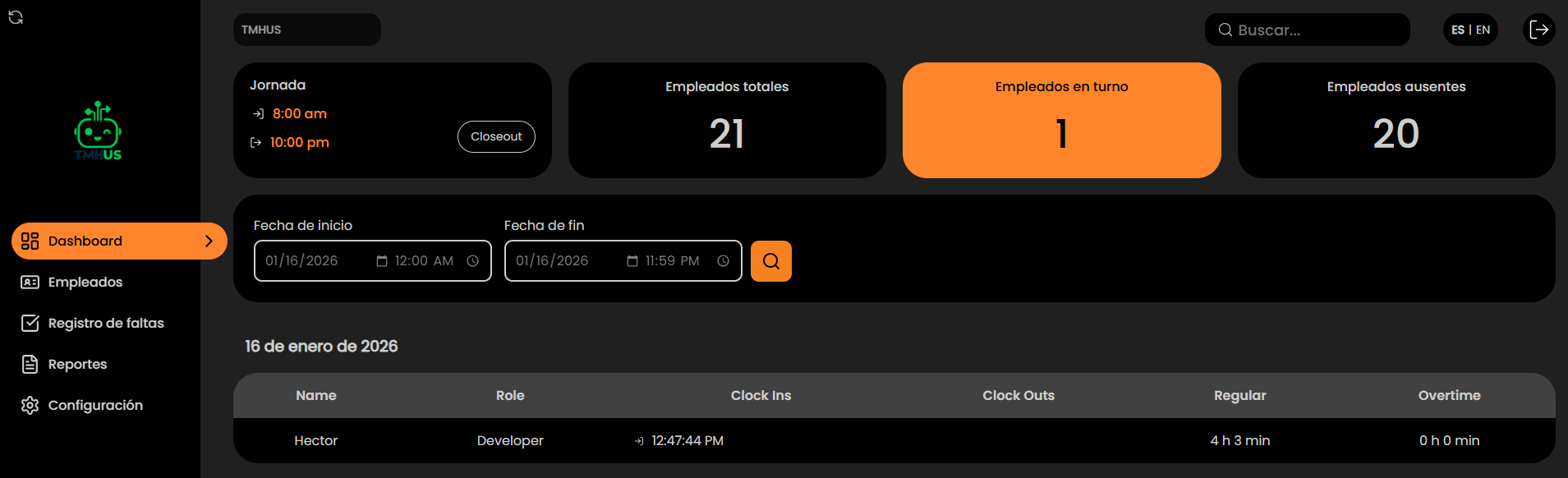
Displays an attendance summary and employee-level details based on the selected period.
Main indicators
At the top, you will see cards such as:
-
Total employees
-
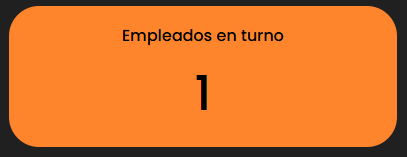
Employees on shift
-
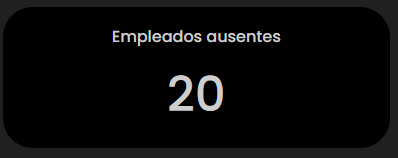
Absent employees
You can also see:
-
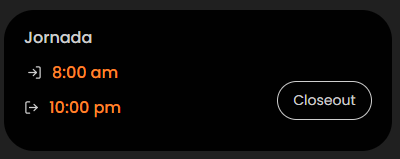
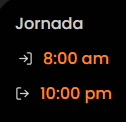
Workday (reference schedule)
-
Closeout button (if applicable to your operation)
Filter by dates
-
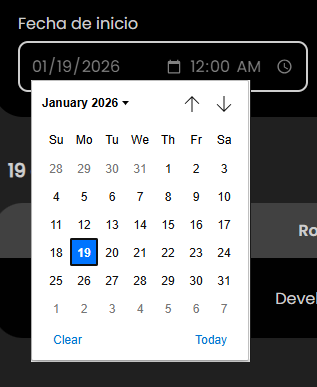
Set the Start date.
-
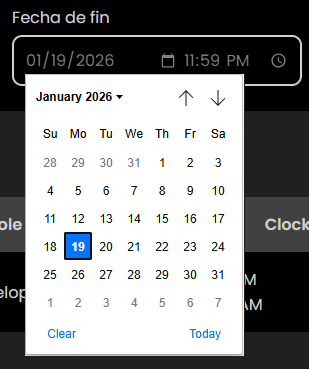
Set the End date.
-
Apply the filter using the magnifying glass button (orange button).

Results table (employee detail)
In the table you will see columns such as:
-
Name
-
Role
-
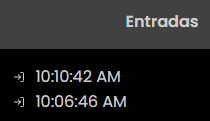
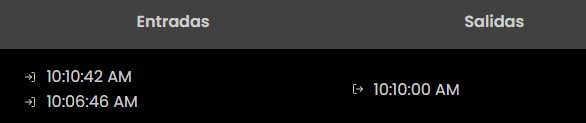
Clock Ins (list of check-ins)
-
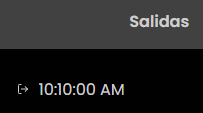
Clock Outs (list of check-outs)
-
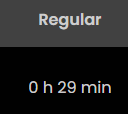
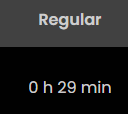
Regular (total regular time)
-
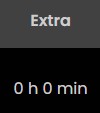
Overtime (total overtime)
How to read it quickly
-
If Clock Ins and Clock Outs show multiple times, there are multiple records within the selected period.
-
Regular and Overtime show accumulated totals for the filtered range.
Workday and Closeout
-
Workday: general reference of the configured schedule.
-
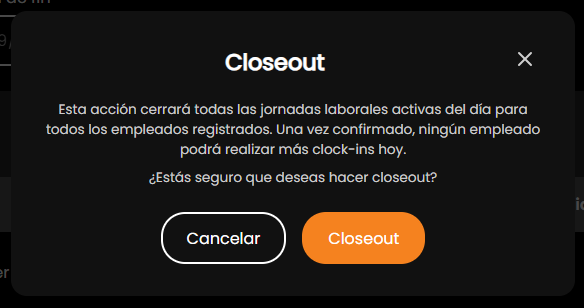
Closeout: administrative closing action (usage depends on internal operational definition).