
Basic Navigation (How to move around)
Navigation
- Basic navigation
- Side menu (modules)
- Top bar (controls)
- Change location/branch
- Search
- Profile
- Log out
Basic navigation
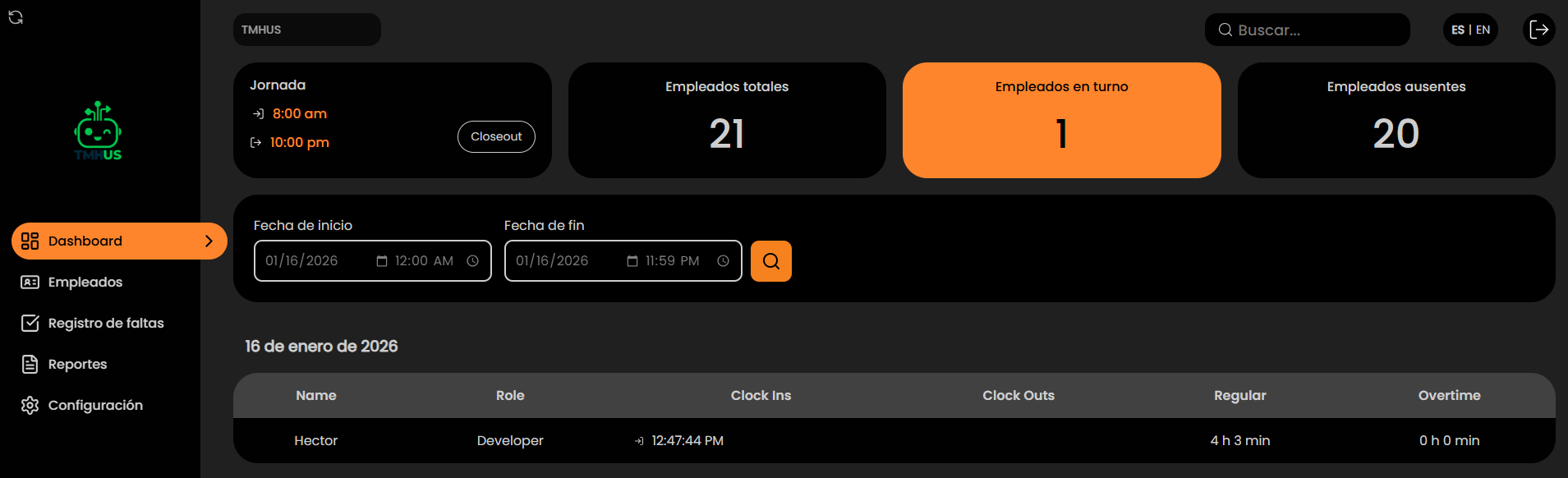
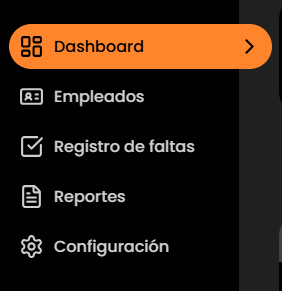
The system is operated using the side menu (modules) and the top bar (quick controls).
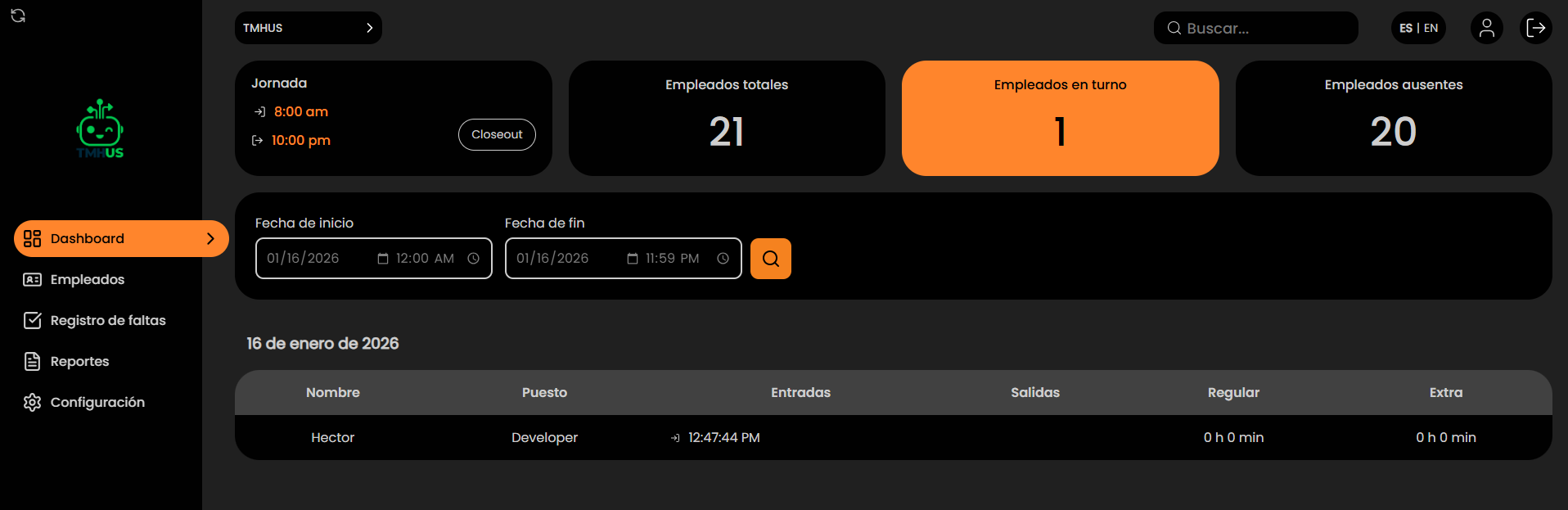
Side menu (modules)
-
Dashboard
-
Employees
-
Absence records

-
Reports
-
Configuration
Top bar (controls)
-
Location/branch selector
-
Search… field
-
ES | EN language selector

-
Profile icon

-
Log out icon

Change location/branch
-
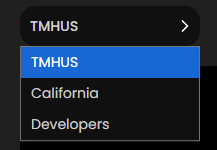
Open the top selector (e.g., “The Merchant Hub”).
-
Select the correct location (e.g., California, Developers, etc.).
-
Confirm that the displayed information corresponds to that location.
Operational rule
- Before generating reports or editing data, confirm the active location.
Search
Use Search… to find employees or items within the current module.
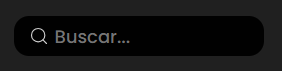
- If no results appear, switch to the correct module and try again.
Profile
From the profile icon, you can access your account information (based on permissions).

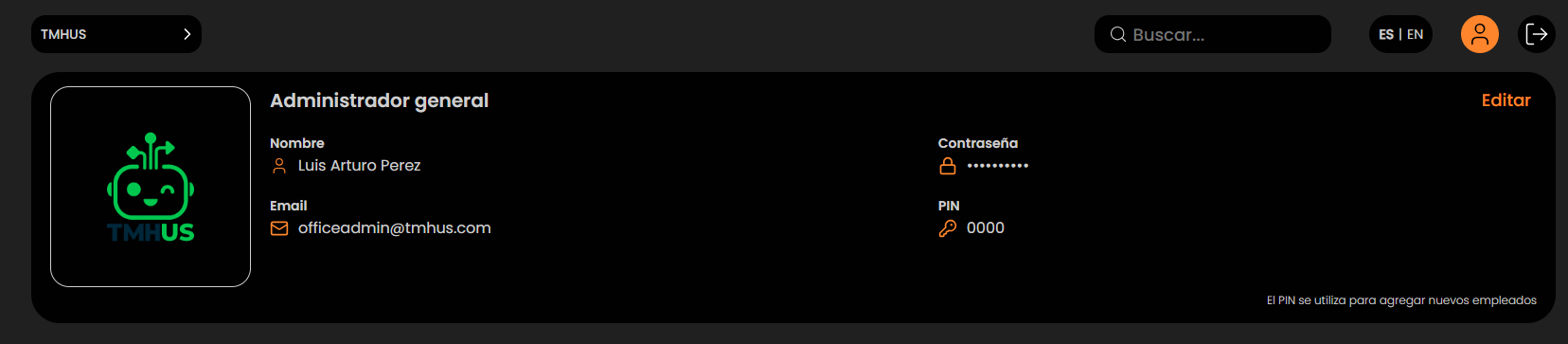
Log out
Use the log out icon (arrow) to close your session when finished.
