
Credentials Adjustment (Smile ID v1.2)
Description
In Smile ID app version 1.2, once installed on devices, it will already be configured the same way.
However, when the user selects “Open in Smile ID”, a modal appears and the user must re-enter the location credentials.
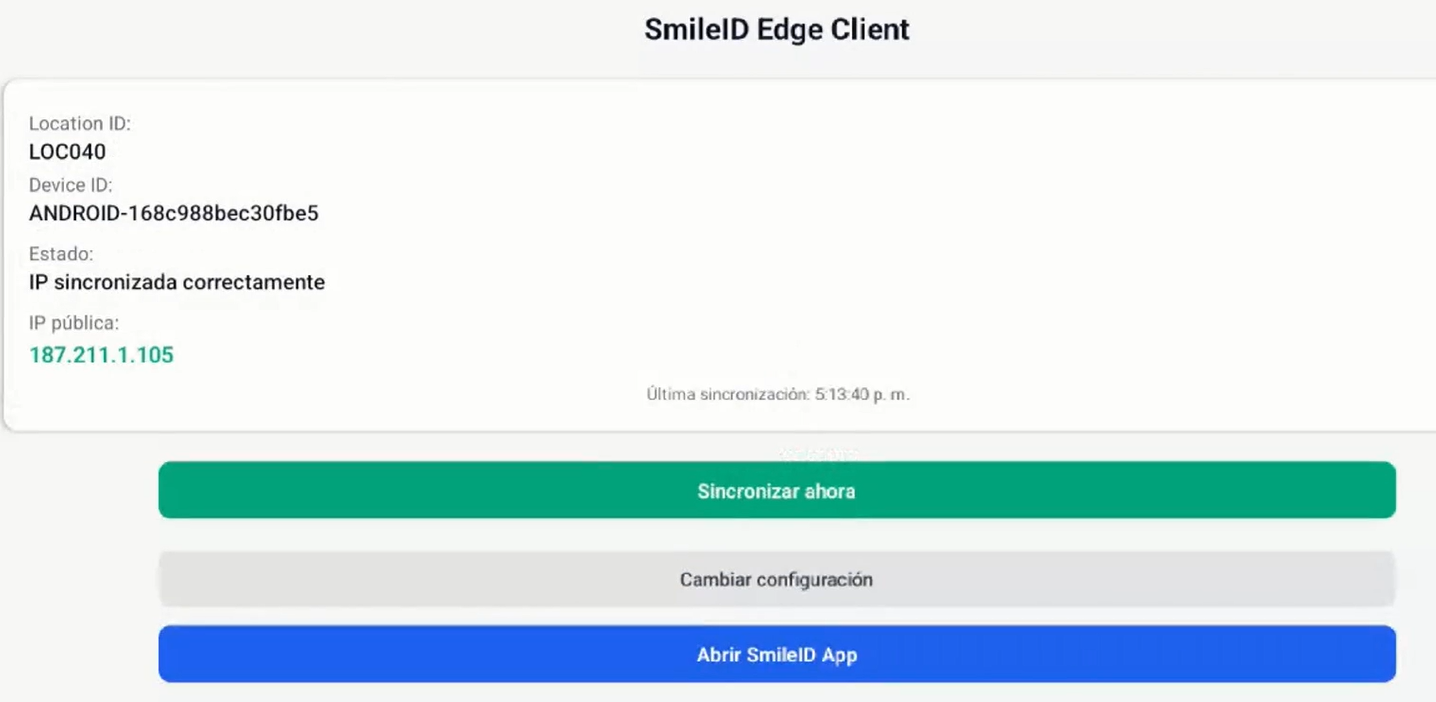
Location credentials modal
In the modal, the user must enter:
- Password
After entering Email and Password and clicking “Sign in”, the system will:
- Automatically redirect to the correct page, and
- Automatically sign in.
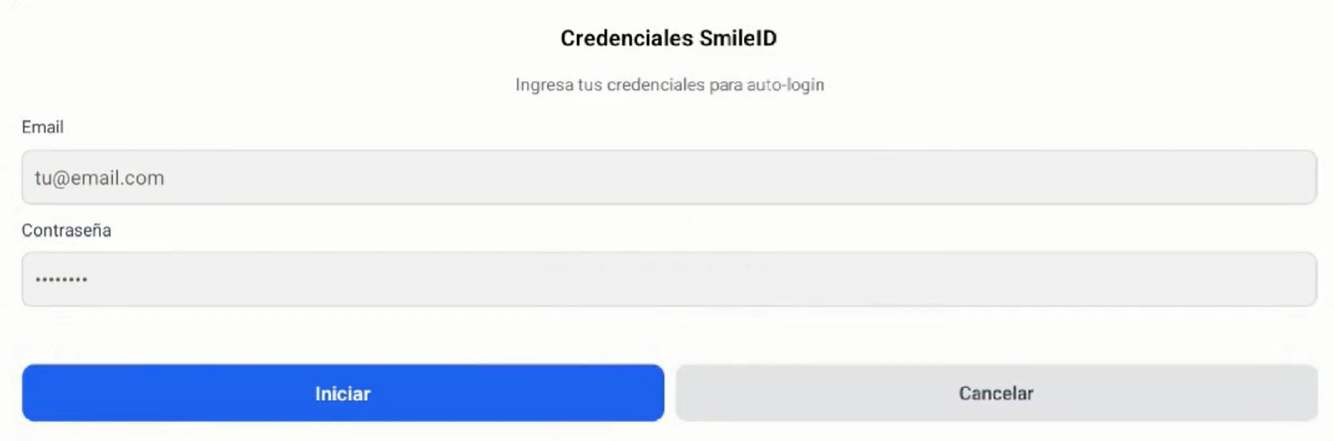
Automatic sign-in (v1.2 behavior)
With version 1.2, once credentials have been configured in the modal:
- If the user exits or closes the app, when reopening it:
- The app routes to login and then signs in automatically.
- If the user attempts to sign out within the app:
- The app signs out, but then signs in automatically again.
- The user cannot leave this flow unless a code-based reconfiguration is performed.
This prevents staff from repeatedly entering credentials.
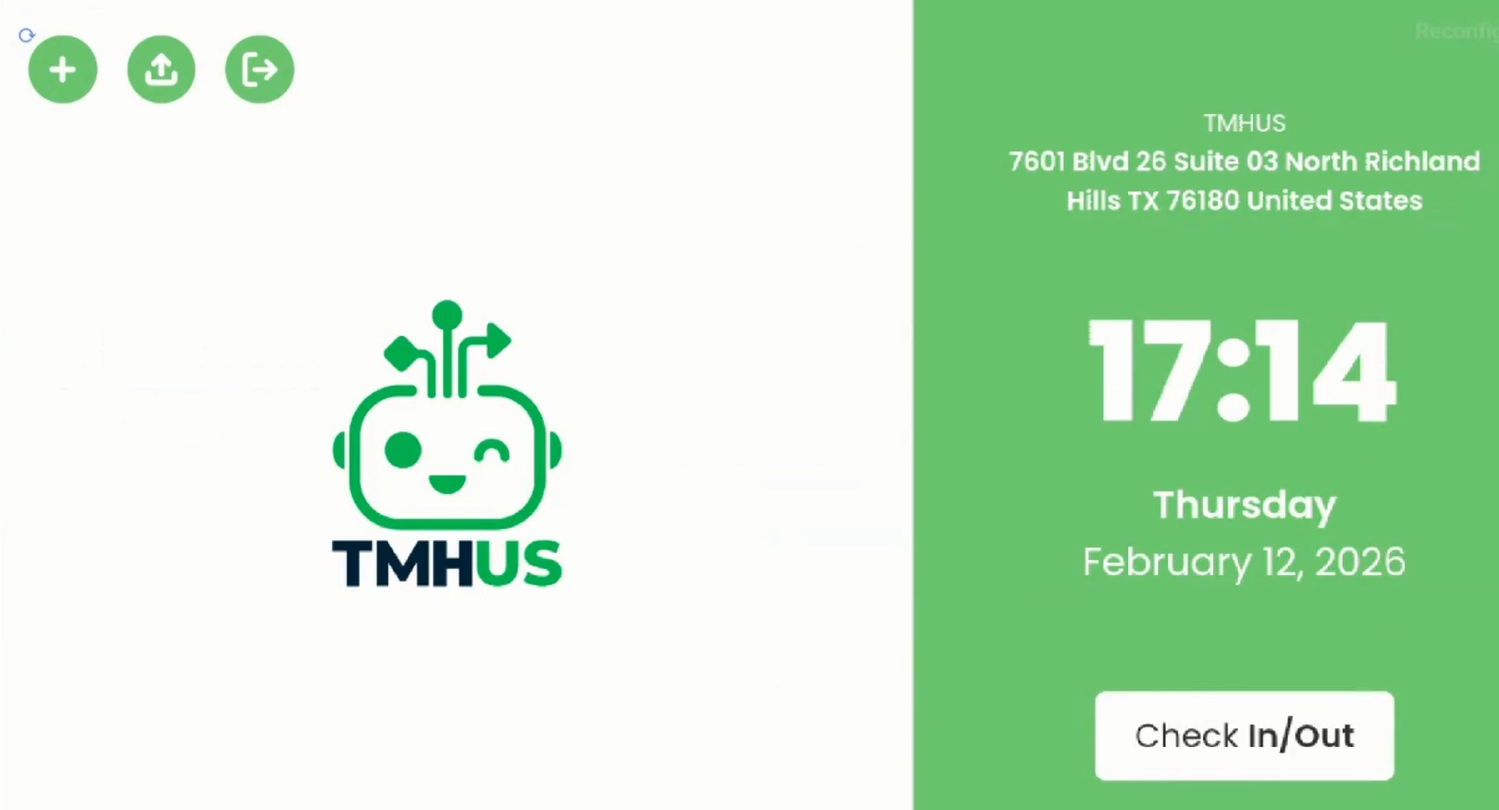
Credential persistence
Once entered in the modal, the credentials will be applied automatically at all times, even if:
- The app is closed,
- The device stays idle for some time,
- The app is removed from the background.
When opened again, the app will sign in automatically using the configured account (whichever account it is).
Reconfiguration (change or remove account)
To change or remove the configured account, a reconfiguration is required:
- Click a partially hidden button (intentionally discreet so employees do not use it).
- The button is located in the top-right corner.
- A code is required to complete the change.

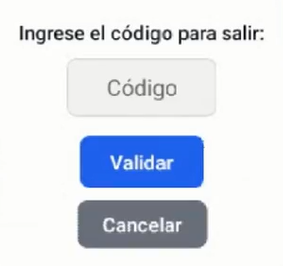
Conclusion
With this adjustment in version 1.2:
- Credentials remain configured and are applied automatically.
- No one can sign out or change the account unless they:
- Know how to access reconfiguration, and
- Know the required code.
- This allows authorized users to change or remove the account only through approved reconfiguration.