
4. General Processing Flow
Navigation
- 4. General Processing Flow
- 4.1 Common starting point
- 4.2 Operational flow in the Web App
- 4.3 Biometric enrollment flow (if applicable)
- 4.4 Estimated times (reference)
4. General Processing Flow
4.1 Common starting point
-
Open the Web App via URL: https://smileid.tmhus.com/
-
Log in (if applicable) or select the available action.
-
Select a module: Attendance, Breaks, Enrollment, Verification (depending on configuration).

4.2 Operational flow in the Web App (attendance/breaks)
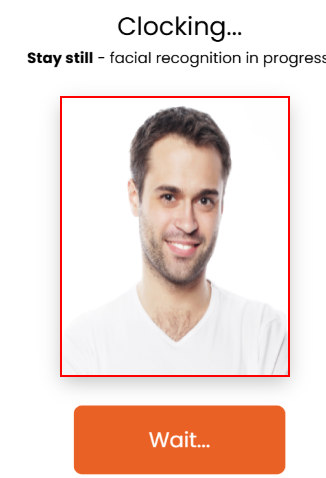
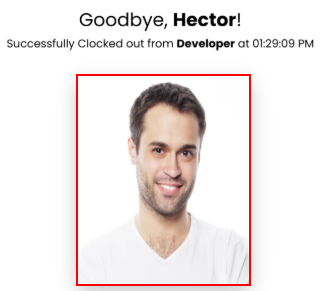
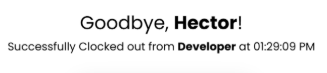
- Select an action (Clock In/Clock Out / Start break / End break).


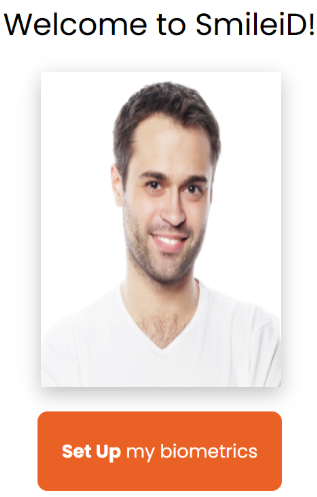
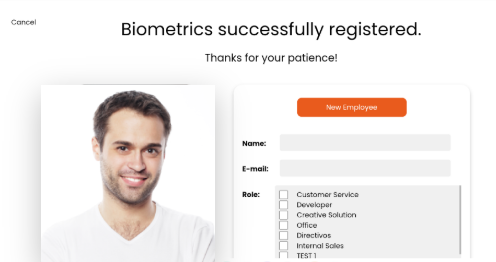
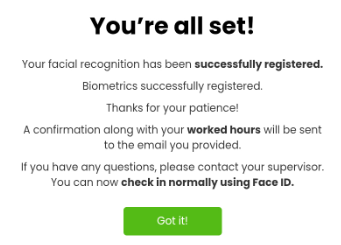
4.3 Biometric enrollment flow (if applicable)
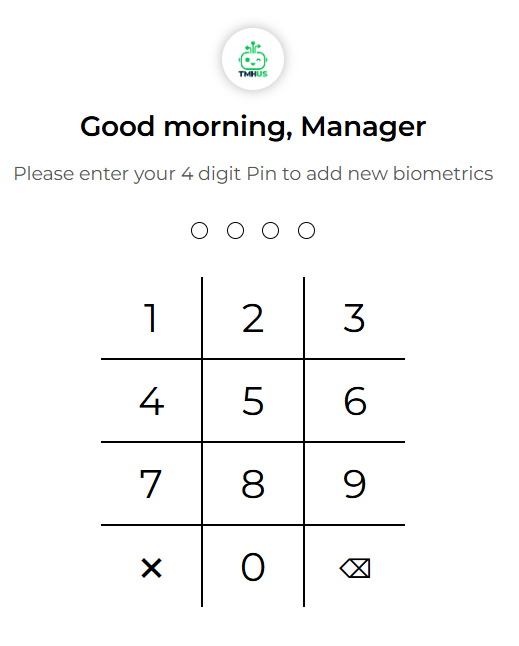
- Go to the biometric enrollment module.

4.4 Estimated times (reference)
- Selfie capture: 10–20 s
- Validation: 2–10 s (depends on network)
- Biometric enrollment: 1–3 min (includes instructions + capture)