
3. Access to the Application
Navigation
- 3. Access to the Application
- 3.1 Access via URL
- 3.2 Create a shortcut on the tablet
- 3.3 Full-screen mode (optional)
- 3.4 On-site device usage rules
3. Access to the Application
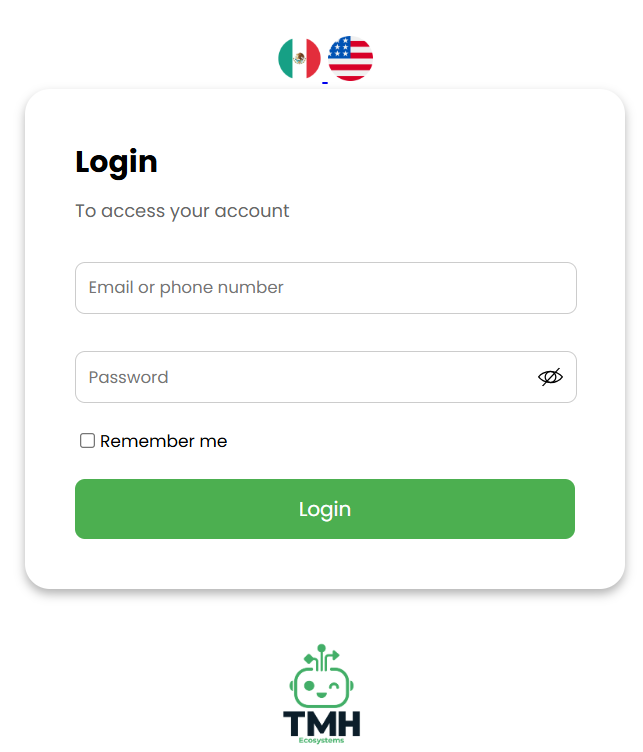
3.1 Access via URL
- Open the browser on the tablet.

- Verify that the home/login screen loads.
3.2 Create a shortcut on the tablet
iPad (Safari)
- Open the URL in Safari: https://smileid.tmhus.com/
- Tap Share (square with arrow icon).
- Select Add to Home Screen.
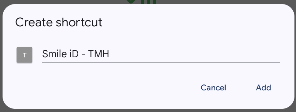
- Set a name (e.g., “Smile ID”) and confirm.
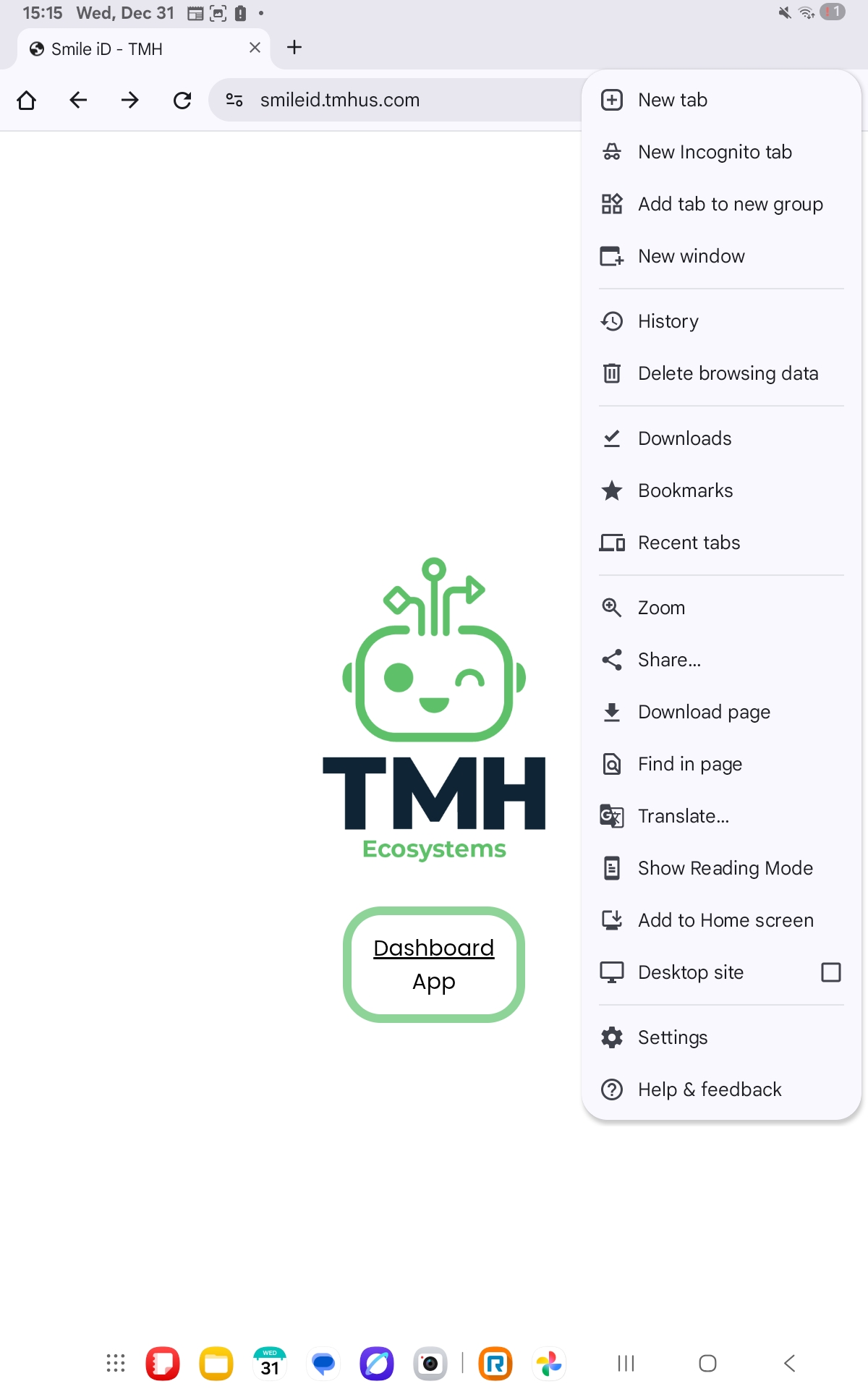
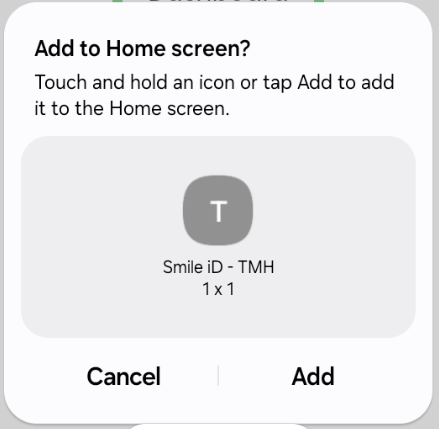
Android (Chrome)
- Open the URL in Chrome: https://smileid.tmhus.com/
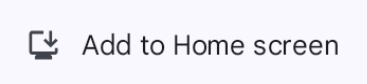
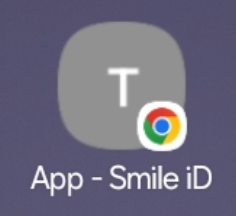
- Menu (⋮) → Add to Home screen.
3.3 Full-screen mode (optional)
If your operation needs to prevent free navigation:
- Use “Add to Home Screen” for an app-like experience.
- Configure “kiosk”/managed mode if the organization uses it (option pending).
3.4 On-site device usage rules
- The tablet must remain at the assigned point.
- Do not install additional apps without authorization.
- Keep the tablet charged.
- Keep the browser on the App during the shift.