
7. Biometric Verification (Selfie)
Navigation
- 7. Biometric Verification (Selfie)
- 7.1 Instructions for a correct capture
- 7.2 What the system validates
- 7.3 Success messages
- 7.4 Rejection / error messages
- 7.5 Recommendations to improve results
- 7.6 Retries and escalation
7. Biometric Verification (Selfie)
7.1 Instructions for a correct capture
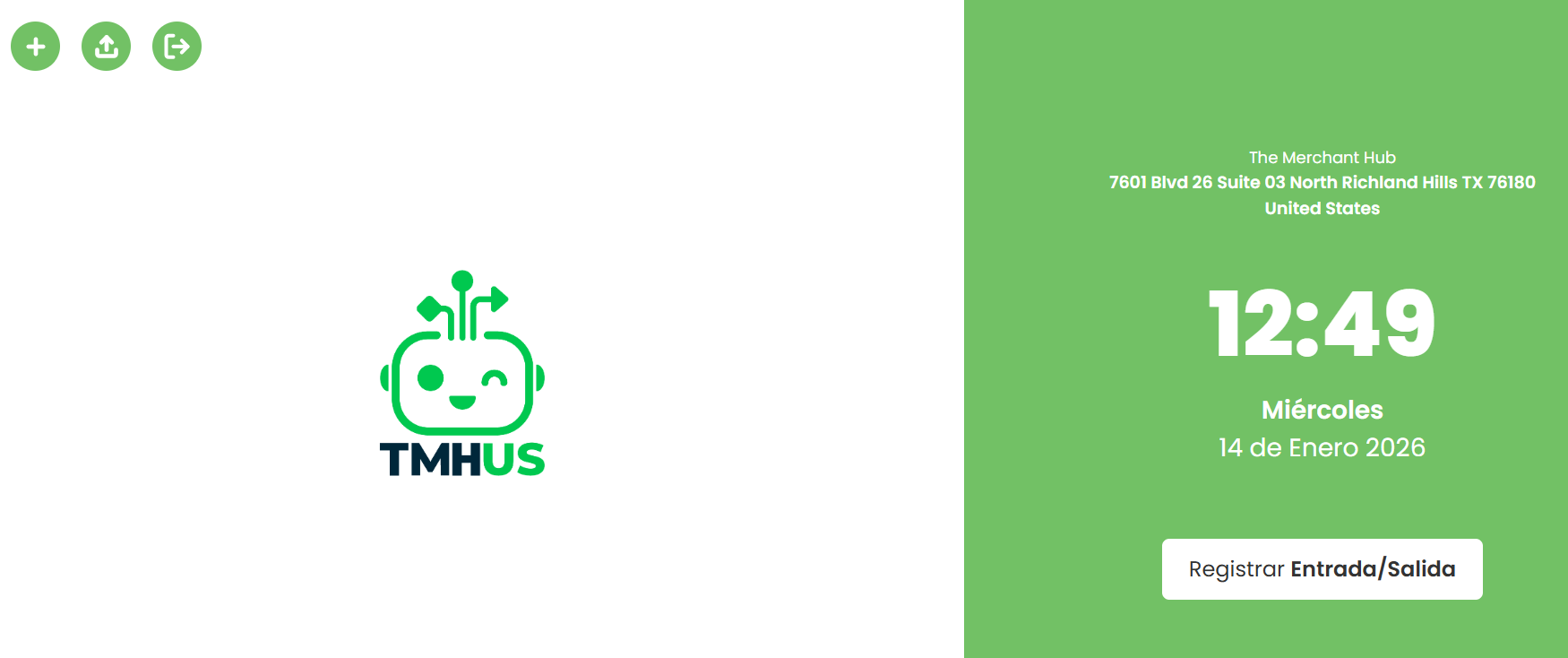
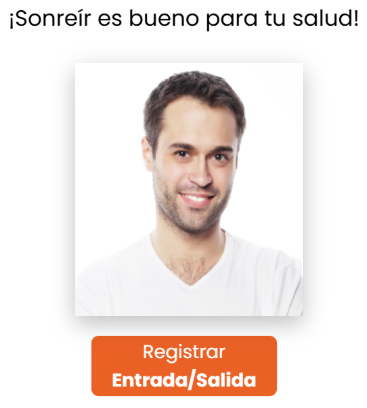
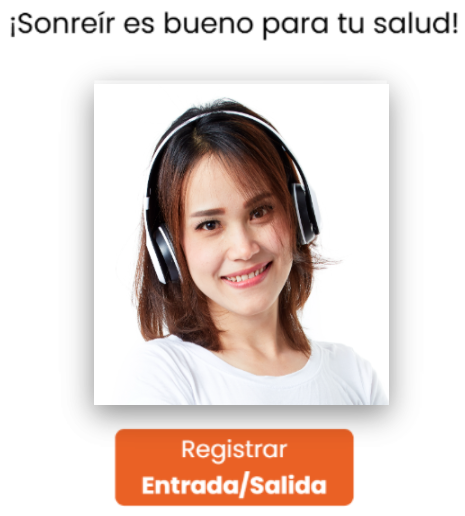
Tell the user to proceed:



7.2 What the system validates
At an operational level, the App validates:
- Facial match against the enrolled biometric data (enrollment).
- Capture quality (lighting, focus, framing).
- Liveness detection (if enabled in configuration).
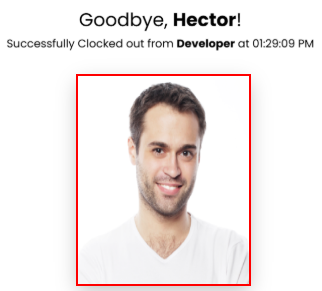
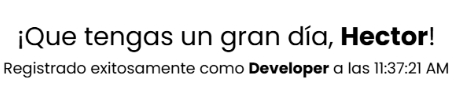
7.3 Success messages
Examples:
- Approved / Verified / Success
Action:
- Confirm the action (clock-in/clock-out/break) was recorded.
7.4 Rejection / error messages
Examples and immediate action:
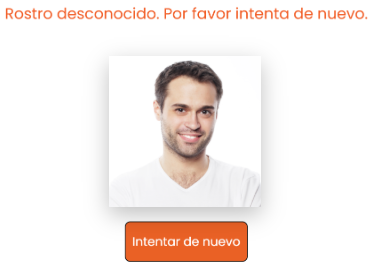
- Rejected / Not matched
-
Improve conditions (lighting/framing) and retry.
-
If it persists: consider biometric re-enrollment (if allowed).
-
Error / Something went wrong
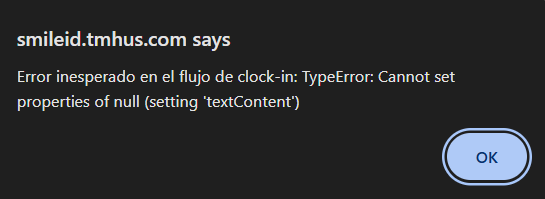
- Check internet connection.


7.5 Recommendations to improve results
- Standardize the capture point (same place, good lighting).
- Use a fixed tablet (stand/mount).
- Keep the lens clean at all times.
- Avoid captures while the user is walking or in a rush.
7.6 Retries and escalation (operational rule)
Suggested rule (adjustable):
- Up to 3 consecutive retries in the same attempt.
- If it fails 3 times:
- Change conditions (lighting/network/device) and allow 1 additional cycle.
- If it fails again: escalate to support with minimum evidence.